GET COMFORTABLE
A workspace
for each account.
Everything you need to install Multi Codex and get your accounts working side by side.
Start with the launcher.
Choose your platform below. The installer downloads the latest release, verifies its checksum, and installs the app.
curl -fsSL https://github.com/wrestle-R/multi-codex/releases/latest/download/install-app.sh -o /tmp/install-multi-codex.sh
bash /tmp/install-multi-codex.sh
Linux x86_64 · AppImage
Linux packages target x86_64: AppImage, DEB and RPM. Mac builds target Apple Silicon on macOS 26 or newer. The Mac release is unsigned and unnotarized, so the command includes an explicit opt-in.
See platform requirements and validation →Prefer a manual install? Download a package from GitHub Releases.
Add a login of your own.
Open Multi Codex, click Add account, give it a name, and choose how to connect it:
- Sign in with browser
Follow the sign-in link and enter the one-time code to connect a ChatGPT account.
- Import current
Save a copy of your existing Codex login. Your original login stays in place.
- Paste JSON
Paste an existing Codex
auth.jsoninto the desktop app. Keep it private; never paste credentials into a website or GitHub issue.
Accounts appear in plan order: Pro, Plus, Go, then Free. Usage refreshes when the app opens.
Pick an account. Pick a folder.
Use the account row to launch VS Code, the Codex desktop app, or CLI. Choose a project folder. Desktop selection is Linux-only for VS Code and the Codex desktop app on supported desktop environments. On macOS, the app launches after you choose a folder. CLI launches open in your selected terminal. Set a preferred folder in Launch settings to make the next launch quicker.
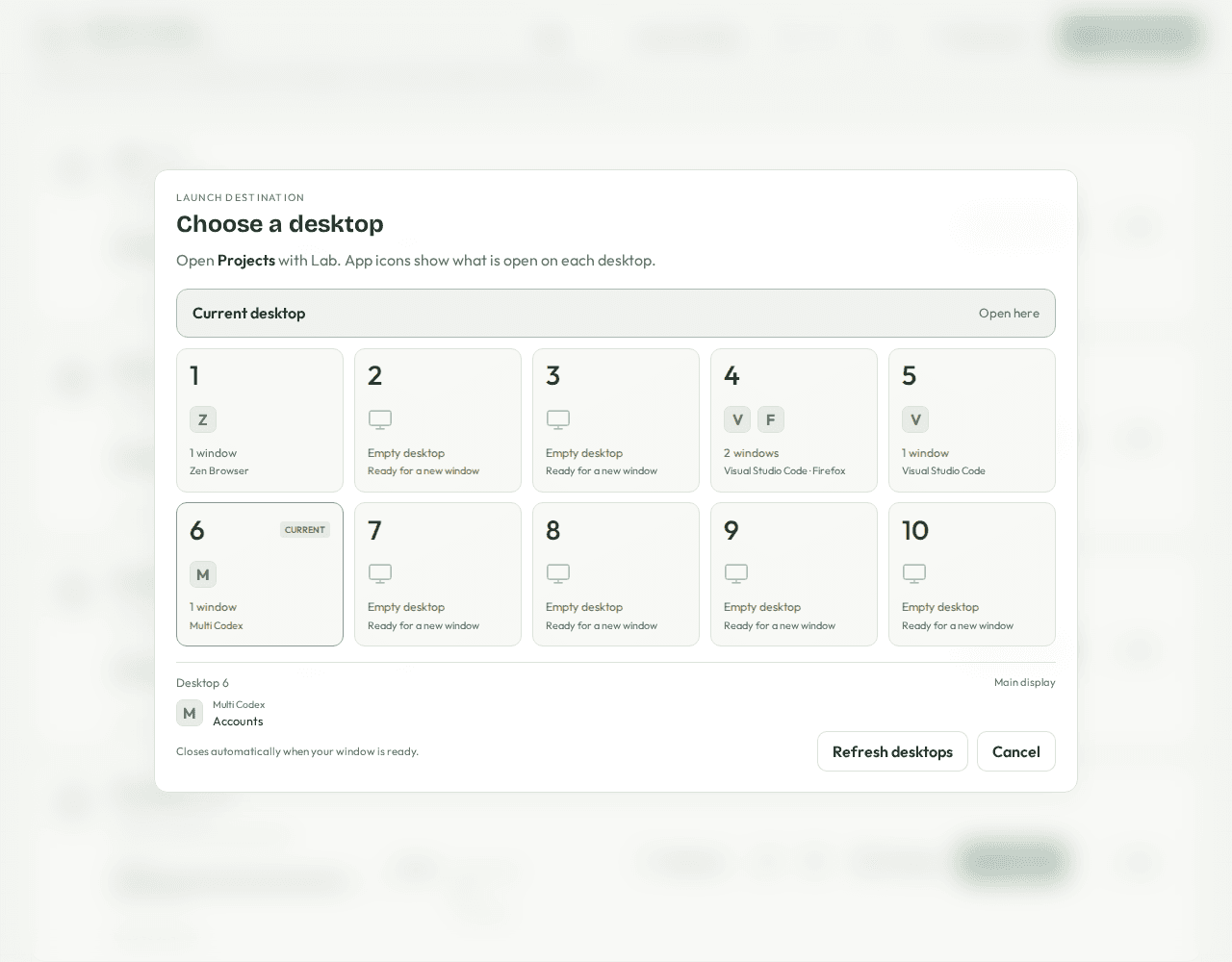
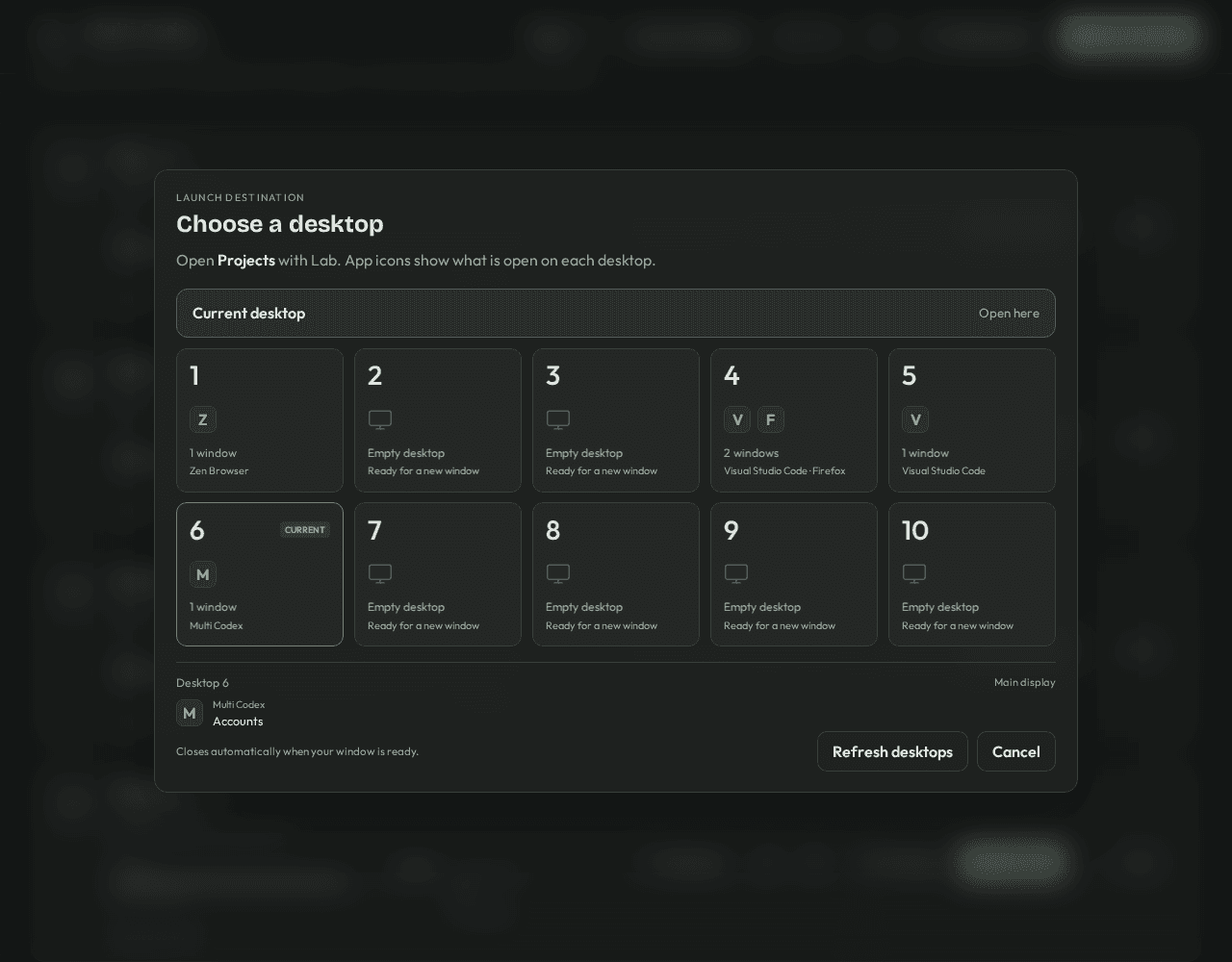
Each account uses its own saved credentials, conversations and application data. The CLI uses that account’s Codex and SQLite homes.
Install the Codex extension inside each isolated VS Code profile. Interactive CLI launches require a complete Codex CLI installation. Standalone launch currently supports the verified Codex desktop version 26.930.51102.
The terminal you already like.
Open Launch settings → CLI terminal. Select an installed terminal and save. The choice applies to your next CLI launch.
Konsole, GNOME Terminal, XFCE Terminal, xterm, Kitty, Ghostty, Alacritty, Foot
Terminal, Kitty, Ghostty, Alacritty
Automatic uses the first supported terminal found. The dropdown shows Automatic and installed terminals only. If a chosen terminal is later removed, the app asks you to select another.
You can set the full path to your Codex executable in the Advanced section. Use an executable path without quotes or extra arguments.
A quiet heads-up.
When available usage resets expire within 48 hours, a small reminder appears at the top of the app. Multiple resets across accounts are grouped into one popup.
- At most two reminders per local calendar day.
- At least four hours between reminders, including across midnight.
- The limit is saved across app restarts.
- Expired, used, undated or stale reset details do not trigger a reminder.
Click View resets to see the accounts, then open an account for exact expiry details. Dismiss the popup with ×. It also closes after a minute when you are not interacting with it. The app checks fresh usage periodically while open; it does not send reminders while closed.
Fresh app. Familiar accounts.
Close Multi Codex, then run the update command for your platform. The updater verifies the download before replacing the application and preserves saved accounts and profile data.
curl -fsSL https://github.com/wrestle-R/multi-codex/releases/latest/download/update-app.sh -o /tmp/update-multi-codex.sh
bash /tmp/update-multi-codex.sh
Linux x86_64 · AppImage
For an update without reopening the app, add MULTI_CODEX_NO_LAUNCH=1 before bash. Keep a backup of important local data as part of your normal workflow.
A few common questions.
The CLI closes immediately or says it has no complete local package.
A VS Code extension helper can be discovered in your PATH even though it cannot start the interactive CLI. Install the full official Codex CLI, then select its executable in Launch settings. Multi Codex skips known extension helpers for interactive launches.
Why does the CLI ask me to sign in?
Launch CLI from the saved account’s row to use that account’s sign-in. Running codex separately in a terminal uses its default home instead. If an account’s credentials have expired or been revoked, reconnect that account in Multi Codex.
macOS blocks the first open.
This release is unsigned. After attempting to open it, go to System Settings → Privacy & Security → Open Anyway and confirm Open. See Apple’s first-open instructions. Do not disable Gatekeeper.
Why is my terminal missing?
Only installed supported terminals appear in the dropdown. Install your terminal, reopen Launch settings, and select it. If your saved terminal has been removed, its selection shows a warning until you choose an installed replacement. On Mac, install supported apps in Applications or your user’s Applications folder.
I do not see a reset reminder.
The reminder needs fresh usage details containing available reset credits with a known expiry within 48 hours. It will also wait if you have already seen two today or the last reminder was less than four hours ago. Use an account’s Refresh button to check current details.
Still stuck? Report an issue → with the error and platform details. Leave out credentials and personal conversation data.